Android Version History
The version history of the
Android mobile operating system began with the release of the Android beta in November 2007. The first commercial version, Android 1.0, was released in September 2008. Android is under ongoing development by Google and the Open Handset Alliance (OHA), and has seen a number of updates to its base operating system since its original release. These updates typically fix bugs and add new features.
Since April 2009, Android versions have been developed under a codename and released in alphabetical order: Cupcake, Donut, Eclair, Froyo, Gingerbread, Honeycomb, Ice Cream Sandwich, and Jelly Bean. As of 2013
[update], over 500 million active devices use the Android OS worldwide The most recent major Android update was Jelly Bean 4.2, which was released on commercial devices in November 2012.
Contents
- 1 Pre-commercial release versions (2007–2008)
- 1.1 Android alpha
- 1.2 Android beta
- 2 Version history by API level
- 2.1 Android 1.0 (API level 1)
- 2.2 Android 1.1 (API level 2)
- 2.3 Android 1.5 Cupcake (API level 3)
- 2.4 Android 1.6 Donut (API level 4)
- 2.5 Android 2.0 Eclair (API level 5)
- 2.6 Android 2.0.1 Eclair (API level 6)
- 2.7 Android 2.1 Eclair (API level 7)
- 2.8 Android 2.2–2.2.3 Froyo (API level 8)
- 2.9 Android 2.3–2.3.2 Gingerbread (API level 9)
- 2.10 Android 2.3.3–2.3.7 Gingerbread (API level 10)
- 2.11 Android 3.0 Honeycomb (API level 11)
- 2.12 Android 3.1 Honeycomb (API level 12)
- 2.13 Android 3.2 Honeycomb (API level 13)
- 2.14 Android 4.0–4.0.2 Ice Cream Sandwich (API level 14)
- 2.15 Android 4.0.3–4.0.4 Ice Cream Sandwich (API level 15)
- 2.16 Android 4.1 Jelly Bean (API level 16)
- 2.17 Android 4.2 Jelly Bean (API level 17)
- 3 Future versions
|
Pre-commercial release versions (2007–2008)
Android alpha
There were at least two internal releases inside Google and the OHA before the Android beta was released in November 2007. In a temporary naming scheme, the second of these releases was code-named "R2-D2". Dan Morrill created some of the first mascot logos, but the current green Android logo was designed by Irina Blok. Ryan Gibson conceived of the confections naming scheme that has been used for the majority of the public releases, starting with Android 1.5 Cupcake in April 2009.
Android beta
The Android beta was released on 5 November 2007, while the software development kit (SDK) was released on 12 November 2007. The 5 November date is popularly celebrated as Android's "birthday".
Public beta versions of the SDK were released in the following order:
- 16 November 2007: m3-rc22a
- 14 December 2007: m3-rc37a
- 13 February 2008: m5-rc14
- 3 March 2008: m5-rc15
- 18 August 2008: 0.9
- 23 September 2008: 1.0-r1
Version history by API level
Android 1.0 (API level 1)
Android 1.0, the first commercial version of the software, was released on 23 September 2008. The first Android device, the HTC Dream,
incorporated the following Android 1.0 features:
| Android 1.0 |
| Version |
Release date |
Features |
Image(s) |
| 1.0 |
23 September 2008 |
- Android Market application download and updates through the Market app
- Web browser to show, zoom and pan full HTML and XHTML web pages – multiple pages show as windows ("cards")
- Camera support – however, this version lacked the option to change the camera's resolution, white balance, quality, etc.
- Folders allowing the grouping of a number of app icons into a single folder icon on the Home screen
- Access to web email servers, supporting POP3, IMAP4, and SMTP
- Gmail synchronization with the Gmail app
- Google Contacts synchronization with the People app
- Google Calendar synchronization with the Calendar app
- Google Maps with Latitude and Street View to view maps and satellite imagery, as well as find local business and obtain driving directions using GPS
- Google Sync, allowing management of over-the-air synchronization of Gmail, People, and Calendar
- Google Search, allowing users to search the Internet and phone apps, contacts, calendar, etc.
- Google Talk instant messaging
- Instant messaging, text messaging, and MMS
- Media Player, enabling management, importing, and playback of media files – however, this version lacked video and stereo Bluetooth support
- Notifications appear in the Status bar, with options to set ringtone, LED or vibration alerts
- Voice Dialer allows dialing and placing of phone calls without typing a name or number
- Wallpaper allows the user to set the background image or photo behind the Home screen icons and widgets
- YouTube video player
- Other apps include: Alarm Clock, Calculator, Dialer (Phone), Home screen (Launcher), Pictures (Gallery), and Settings
- Wi-Fi and Bluetooth support
|
Android 1.0 on the HTC Dream |
Android 1.1 (API level 2)
On 9 February 2009, the Android 1.1 update was released, initially for the HTC Dream only. Android 1.1 was known as "Petit Four" internally, though this name was not used officially. The update resolved bugs, changed the Android API and added a number of features:
| Android 1.1 |
| Version |
Release date |
Features |
Image(s) |
| 1.1 |
9 February 2009 |
- Details and reviews available when a user searches for businesses on Maps
- Longer in-call screen timeout default when using the speakerphone, plus ability to show/hide dialpad
- Ability to save attachments in messages
- Support added for marquee in system layouts
|
|
Android 1.5 Cupcake (API level 3)
On 30 April 2009, the Android 1.5 update was released, based on Linux kernel 2.6.27. This was the first release to officially use a codename based on a dessert item ("Cupcake"), a theme which would be used for all releases henceforth. The update included several new features and UI amendments:
| Android 1.5 Cupcake |
| Version |
Release date |
Features |
Image(s) |
| 1.5 |
30 April 2009 |
- Support for third-party virtual keyboards with text prediction and user dictionary for custom words
- Support for Widgets – miniature application views that can be embedded in other applications (such as the Home screen) and receive periodic updates
- Video recording and playback in MPEG-4 and 3GP formats
- Auto-pairing and stereo support for Bluetooth (A2DP and AVRCP profiles)
- Copy and paste features in web browser
- User pictures shown for Favorites in Contacts
- Specific date/time stamp shown for events in call log, and one-touch access to a contact card from call log event
- Animated screen transitions
- Auto-rotation option
- New stock boot animation
- Ability to upload videos to YouTube
- Ability to upload photos to Picasa
|
Android 1.5 on the HTC Magic |
Android 1.6 Donut (API level 4)
On 15 September 2009, the Android 1.6 SDK – dubbed Donut – was released, based on Linux kernel 2.6.29. Included in the update were numerous new features:
| Android 1.6 Donut |
| Version |
Release date |
Features |
Image(s) |
| 1.6 |
15 September 2009 |
- Voice and text entry search enhanced to include bookmark history, contacts, and the web
- Ability for developers to include their content in search results
- Multi-lingual speech synthesis engine to allow any Android application to "speak" a string of text
- Easier searching and ability to view app screenshots in Android Market
- Gallery, camera and camcorder more fully integrated, with faster camera access
- Ability for users to select multiple photos for deletion
- Updated technology support for CDMA/EVDO, 802.1x, VPNs, and a text-to-speech engine
- Support for WVGA screen resolutions
- Speed improvements in searching and camera applications
- Expanded Gesture framework and new GestureBuilder development tool
|
|
Android 2.0 Eclair (API level 5)
On 26 October 2009, the Android 2.0 SDK – codenamed Eclair – was released, based on Linux kernel 2.6.29. Changes included:
| Android 2.0 Eclair |
| Version |
Release date |
Features |
Image(s) |
| 2.0 |
26 October 2009 |
- Expanded Account sync, allowing users to add multiple accounts to a device for synchronization of email and contacts
- Microsoft Exchange email support, with combined inbox to browse email from multiple accounts in one page
- Bluetooth 2.1 support
- Ability to tap a Contacts photo and select to call, SMS, or email the person
- Ability to search all saved SMS and MMS messages, with delete oldest messages in a conversation automatically deleted when a defined limit is reached
- Numerous new camera features, including flash support, digital zoom, scene mode, white balance, color effect and macro focus
- Improved typing speed on virtual keyboard, with smarter dictionary that learns from word usage and includes contact names as suggestions
- Refreshed browser UI with bookmark thumbnails, double-tap zoom and support for HTML5
- Calendar agenda view enhanced, showing attending status for each invitee, and ability to invite new guests to events
- Optimized hardware speed and revamped UI
- Support for more screen sizes and resolutions, with better contrast ratio
- Improved Google Maps 3.1.2
- MotionEvent class enhanced to track multi-touch events
- Addition of live wallpapers, allowing the animation of home-screen background images to show movement
|
Android 2.0 Eclair on the Motorola Droid |
Android 2.0.1 Eclair (API level 6)
| Android 2.0.1 Eclair |
| Version |
Release date |
Features |
Image(s) |
| 2.0.1 |
3 December 2009 |
- Minor API changes, bug fixes and framework behavioral changes
|
|
Android 2.1 Eclair (API level 7)
| Android 2.1 Eclair |
| Version |
Release date |
Features |
Image(s) |
| 2.1 |
12 January 2010 |
- Minor amendments to the API and bug fixes
|
|
Android 2.2–2.2.3 Froyo (API level 8)
On 20 May 2010, the SDK for Android 2.2 (Froyo, short for
frozen yogurt) was released, based on Linux kernel 2.6.32.
[37]
| Android 2.2 Froyo |
| Version |
Release date |
Features |
Image(s) |
| 2.2 |
20 May 2010 |
- Speed, memory, and performance optimizations
- Additional application speed improvements, implemented through JIT compilation
- Integration of Chrome's V8 JavaScript engine into the Browser application
- Support for the Android Cloud to Device Messaging (C2DM) service, enabling push notifications
- Improved Microsoft Exchange support, including security policies, auto-discovery, GAL look-up, calendar synchronization and remote wipe
- Improved application launcher with shortcuts to Phone and Browser applications
- USB tethering and Wi-Fi hotspot functionality
- Option to disable data access over mobile network
- Updated Market application with batch and automatic update features
- Quick switching between multiple keyboard languages and their dictionaries
- Voice dialing and contact sharing over Bluetooth
- Support for Bluetooth-enabled car and desk docks
- Support for numeric and alphanumeric passwords
- Support for file upload fields in the Browser application
- Support for installing applications to the expandable memory
- Adobe Flash support
- Support for high-PPI displays (up to 320 ppi), such as 4" 720p screens
- Gallery allows users to view picture stacks using a zoom gesture
|
Android 2.2 Froyo on the Nexus One |
| 2.2.1 |
18 January 2011 |
- Bug fixes, security updates and performance improvements
|
| 2.2.2 |
22 January 2011 |
- Minor bug fixes, including SMS routing issues that affected the Nexus One
|
| 2.2.3 |
21 November 2011 |
|
Android 2.3–2.3.2 Gingerbread (API level 9)
On 6 December 2010, the Android 2.3 (Gingerbread) SDK was released, based on Linux kernel 2.6.35. Changes included:
| Android 2.3 Gingerbread |
| Version |
Release date |
Features |
Image(s) |
| 2.3 |
6 December 2010 |
- Updated user interface design with increased simplicity and speed
- Support for extra-large screen sizes and resolutions (WXGA and higher)
- Native support for SIP VoIP internet telephony
- Faster, more intuitive text input in virtual keyboard, with improved accuracy, better suggested text and voice input mode
- Enhanced copy/paste functionality, allowing users to select a word by press-hold, copy, and paste
- Support for Near Field Communication (NFC), allowing the user to read an NFC tag embedded in a poster, sticker, or advertisement
- New audio effects such as reverb, equalization, headphone virtualization, and bass boost
- New Download Manager, giving users easy access to any file downloaded from the browser, email, or another application
- Support for multiple cameras on the device, including a front-facing camera, if available
- Support for WebM/VP8 video playback, and AAC audio encoding
- Improved power management with a more active role in managing apps that are keeping the device awake for too long
- Enhanced support for native code development
- Switched from YAFFS to ext4 on newer devices
- Audio, graphical, and input enhancements for game developers
- Concurrent garbage collection for increased performance
- Native support for more sensors (such as gyroscopes and barometers)
|
Android 2.3 on Google's Nexus S |
| 2.3.1 |
December 2010 |
- Improvements and bug fixes for the Google Nexus S
|
| 2.3.2 |
January 2011 |
Android 2.3.3–2.3.7 Gingerbread (API level 10)
| Android 2.3.3 Gingerbread |
| Version |
Release date |
Features |
Image(s) |
| 2.3.3 |
9 February 2011 |
- Several improvements and API fixes
|
|
| 2.3.4 |
28 April 2011 |
- Support for voice or video chat using Google Talk
- Open Accessory Library support. Open Accessory was introduced in 3.1 (Honeycomb) but the Open Accessory Library grants 2.3.4 added support when connecting to a USB peripheral with compatible software and a compatible application on the device
|
| 2.3.5 |
25 July 2011 |
- Improved network performance for the Nexus S 4G, among other fixes and improvements
- Fixed Bluetooth bug on Samsung Galaxy S
- Improved Gmail application
- Shadow animations for list scrolling
- Camera software enhancements
- Improved battery efficiency
|
| 2.3.6 |
2 September 2011 |
- Fixed a voice search bug
- (The 2.3.6 update had the side-effect of impairing the Wi-Fi hotspot functionality of many Canadian Nexus S phones. Google acknowledged this problem and fixed it in late September.)
|
| 2.3.7 |
21 September 2011 |
- Google Wallet support for the Nexus S 4G
|
Android 3.0 Honeycomb (API level 11)
On 22 February 2011, the Android 3.0 (Honeycomb) SDK – the first tablet-only Android update – was released, based on Linux kernel 2.6.36.
The first device featuring this version, the Motorola Xoom tablet, was released on 24 February 2011. The update's features included:
| Android 3.0 Honeycomb |
| Version |
Release date |
Features |
Image(s) |
| 3.0 |
22 February 2011 |
- Optimized tablet support with a new virtual and “holographic” user interface
- Added System Bar, featuring quick access to notifications, status, and soft navigation buttons, available at the bottom of the screen
- Added Action Bar, giving access to contextual options, navigation, widgets, or other types of content at the top of the screen
- Simplified multitasking – tapping Recent Apps in the System Bar allows users to see snapshots of the tasks underway and quickly jump from one app to another
- Redesigned keyboard, making typing fast, efficient and accurate on larger screen sizes
- Simplified, more intuitive copy/paste interface
- Multiple browser tabs replacing browser windows, plus form auto-fill and a new “incognito” mode allowing anonymous browsing
- Quick access to camera exposure, focus, flash, zoom, front-facing camera, time-lapse, and other camera features
- Ability to view albums and other collections in full-screen mode in Gallery, with easy access to thumbnails for other photos
- New two-pane Contacts UI and Fast Scroll to let users easily organize and locate contacts
- New two-pane Email UI to make viewing and organizing messages more efficient, allowing users to select one or more messages
- Support for video chat using Google Talk
- Hardware acceleration
- Support for multi-core processors
- Ability to encrypt all user data
- HTTPS stack improved with Server Name Indication (SNI)
- Filesystem in Userspace (FUSE; kernel module)
|

Android 3.0 on the Motorola Xoom tablet |
Android 3.1 Honeycomb (API level 12)
| Android 3.1 Honeycomb |
| Version |
Release date |
Features |
Image(s) |
| 3.1 |
10 May 2011 |
- UI refinements
- Connectivity for USB accessories
- Expanded Recent Apps list
- Resizable Home screen widgets
- Support for external keyboards and pointing devices
- Support for joysticks and gamepads
- Support for FLAC audio playback
- High-performance Wi-Fi lock, maintaining high-performance Wi-Fi connections when device screen is off
- Support for HTTP proxy for each connected Wi-Fi access point
|
|
Android 3.2 Honeycomb (API level 13)
Most first- and second-generation Google TV-enabled devices utilize Honeycomb 3.2.
| Android 3.2 Honeycomb |
| Version |
Release date |
Features |
Image(s) |
| 3.2 |
15 July 2011 |
- Improved hardware support, including optimizations for a wider range of tablets
- Increased ability of apps to access files on the SD card, e.g. for synchronization
- Compatibility display mode for apps that have not been optimized for tablet screen resolutions
- New display support functions, giving developers more control over display appearance on different Android devices
|
|
| 3.2.1 |
20 September 2011 |
- Bug fixes and minor security, stability and Wi-Fi improvements
- Update to Android Market with automatic updates and easier-to-read Terms and Conditions text
- Update to Google Books
- Improved Adobe Flash support in browser
- Improved Chinese handwriting prediction
|
| 3.2.2 |
30 August 2011 |
- Bug fixes and other minor improvements for the Motorola Xoom 4G
|
| 3.2.3 |
|
- Bug fixes and other minor improvements for the Motorola Xoom and Motorola Xoom 4G
|
| 3.2.4 |
December 2011 |
- "Pay as You Go" support for 3G and 4G tablets
|
| 3.2.5 |
January 2012 |
- Bug fixes and other minor improvements for the Motorola Xoom and Motorola Xoom 4G
|
| 3.2.6 |
February 2012 |
- Fixed data connectivity issues when coming out of airplane mode on the US 4G Motorola Xoom
|
Android 4.0–4.0.2 Ice Cream Sandwich (API level 14)
The SDK for Android 4.0.1 (Ice Cream Sandwich), based on Linux kernel 3.0.1, was publicly released on 19 October 2011. Google's Gabe Cohen stated that Android 4.0 was "theoretically compatible" with any Android 2.3.x device in production at that time.
The source code for Android 4.0 became available on 14 November 2011. The update introduced numerous new features, including:
| Android 4.0 Ice Cream Sandwich |
| Version |
Release date |
Features |
Image(s) |
| 4.0 |
19 October 2011 |
- Soft buttons from Android 3.x are now available for use on phones
- Separation of widgets in a new tab, listed in a similar manner to apps
- Easier-to-create folders, with a drag-and-drop style
- A customizable launcher
- Improved visual voicemail with the ability to speed up or slow down voicemail messages
- Pinch-to-zoom functionality in the calendar
- Integrated screenshot capture (accomplished by holding down the Power and Volume-Down buttons)
- Improved error correction on the keyboard
- Ability to access apps directly from lock screen
- Improved copy and paste functionality
- Better voice integration and continuous, real-time speech to text dictation
- Face Unlock, a feature that allows users to unlock handsets using facial recognition software
- New tabbed web browser under Google's Chrome brand, allowing up to 16 tabs
- Automatic syncing of browser with users' Chrome bookmarks
- A new typeface family for the UI, Roboto
- Data Usage section in settings that lets users set warnings when they approach a certain usage limit, and disable data use when the limit is exceeded
- Ability to shut down apps that are using data in the background
- Improved camera app with zero shutter lag, time lapse settings, panorama mode, and the ability to zoom while recording
- Built-in photo editor
- New gallery layout, organized by location and person
- Refreshed "People" app with social network integration, status updates and hi-res images
- Android Beam, a near-field communication feature allowing the rapid short-range exchange of web bookmarks, contact info, directions, YouTube videos and other data
- Support for the WebP image format
- Hardware acceleration of the UI
- Wi-Fi Direct
- 1080p video recording for stock Android devices
- Android VPN Framework (AVF), and TUN (but not TAP) kernel module. Prior to 4.0, VPN software required rooted Android.
|
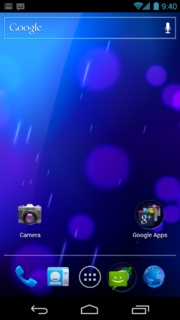
Android 4.0 on the Samsung Galaxy Nexus |
| 4.0.1 |
21 October 2011 |
- Fixed minor bugs for the Samsung Galaxy Nexus.
|
| 4.0.2 |
28 November 2011 |
- Fixed minor bugs on the Verizon Galaxy Nexus, the US launch of which was later delayed until December 2011
(For Canadian consumers, 4.0.2 reportedly created a bug on the Galaxy Nexus that crashed the application market when users attempted to view details of any Android application. It also inadvertently reduced the NFC capabilities of the Nexus phone). |
Android 4.0.3–4.0.4 Ice Cream Sandwich (API level 15)
| Android 4.0.3 Ice Cream Sandwich |
| Version |
Release date |
Features |
Image(s) |
| 4.0.3 |
16 December 2011 |
- Numerous bug fixes and optimizations
- Improvements to graphics, databases, spell-checking and Bluetooth functionality
- New APIs for developers, including a social stream API in the Contacts provider
- Calendar provider enhancements
- New camera apps enhancing video stabilization and QVGA resolution
- Accessibility refinements such as improved content access for screen readers
|
|
| 4.0.4 |
29 March 2012 |
- Stability improvements
- Better camera performance
- Smoother screen rotation
- Improved phone number recognition
|
Support for Adobe Systems' Flash player ended with Ice Cream Sandwich.
Android 4.1 Jelly Bean (API level 16)
Google announced Android 4.1 (Jelly Bean) at the Google I/O conference on 27 June 2012. Based on Linux kernel 3.0.31, Jelly Bean was an incremental update with the primary aim of improving the functionality and performance of the user interface. The performance improvement involved "Project Butter", which uses touch anticipation, triple buffering, extended vsync timing and a fixed frame rate of 60 fps to create a fluid and "buttery-smooth" UI. Android 4.1 Jelly Bean was released to the Android Open Source Project on 9 July 2012, and the Nexus 7 tablet, the first device to run Jelly Bean, was released on 13 July 2012.
| Android 4.1 Jelly Bean |
| Version |
Release date |
Features |
Image(s) |
| 4.1 |
9 July 2012 |
- Smoother user interface:
- Vsync timing across all drawing and animation done by the Android framework, including application rendering, touch events, screen composition and display refresh
- Triple buffering in the graphics pipeline
- Enhanced accessibility
- Bi-directional text and other language support
- User-installable keyboard maps
- Expandable notifications
- Ability to turn off notifications on an app specific basis
- Shortcuts and widgets can automatically be re-arranged or re-sized to allow new items to fit on home screens
- Bluetooth data transfer for Android Beam
- Offline voice dictation
- Tablets with smaller screens now use an expanded version of the interface layout and home screen used by phones.
- Improved voice search
- Improved camera app
- Google Wallet (for the Nexus 7)
- High-resolution Google+ contact photos
- Google Now search application
- Multichannel audio
- USB audio (for external sound DACs)
- Audio chaining (also known as gapless playback)
- Stock Android browser is replaced with the Android mobile version of Google Chrome in devices with Android 4.1 preinstalled
- Ability for other launchers to add widgets from the app drawer without requiring root access
|

Android 4.1 on the Asus Nexus 7 tablet |
| 4.1.1 |
23 July 2012 |
- Fixed a bug on the Nexus 7 regarding the inability to change screen orientation in any application
|
| 4.1.2 |
9 October 2012 |
- Lock/home screen rotation support for the Nexus 7
- One-finger gestures to expand/collapse notifications
- Bug fixes and performance enhancements
|
Android 4.2 Jelly Bean (API level 17)
Google was expected to announce Jelly Bean 4.2 at an event in New York City on 29 October 2012, but the event was cancelled due to Hurricane Sandy. Instead of rescheduling the live event, Google announced the new version with a press release, under the slogan "A new flavor of Jelly Bean". The first devices to run Android 4.2 were LG's Nexus 4 and Samsung's Nexus 10, which were released on 13 November 2012.
| Android 4.2 Jelly Bean |
| Version |
Release date |
Features |
Image(s) |
| 4.2 |
13 November 2012 |
- "Photo Sphere" panorama photos
- Keyboard with gesture typing
- Lock screen improvements, including widget support and the ability to swipe directly to camera
- Notification power controls ("Quick Settings")
- "Daydream" screensavers, showing information when idle or docked
- Multiple user accounts (tablets only)
- Support for wireless display (Miracast)
- Accessibility improvements: triple-tap to magnify the entire screen, pan and zoom with two fingers. Speech output and Gesture Mode navigation for blind users
- New clock app with built-in world clock, stop watch and timer
- All devices now use the same interface layout, previously adapted from phones on 4.1 for smaller tablets (with centered software buttons, the system bar at the top of the screen, and a home screen with a dock and centered application menu), regardless of screen size
- Increased number of extended notifications and Actionable Notifications for more apps, allowing users to respond to certain notifications within the notification bar and without launching the app directly
- SELinux
- Always-on VPN
- Premium SMS confirmation
- Group Messaging
|

Android 4.2 on the Google Nexus 4 |
| 4.2.1 |
27 November 2012 |
- Fixed a bug in the People app where December was not displayed on the date selector when adding an event to a contact
- Added Bluetooth gamepads and joysticks as supported HID
|
| 4.2.2 |
11 February 2013 |
- Fixed Bluetooth audio streaming bugs
- Long-pressing the Wi-Fi and Bluetooth icons in Quick Settings now toggles the on/off state
- New download notifications, which now shows the percentage and estimated time remaining for active app downloads
- New sounds for wireless charging and low battery
- New Gallery app animation allows faster loading
- USB debug whitelist
- Bug fixes and performance enhancements
|
Future versions
The successor to Jelly Bean is widely rumored to be dubbed Key Lime Pie, although no official statements have been made confirming this. In February 2013, a leaked document from semiconductor manufacturer Qualcomm revealed that Key Lime Pie will be released in the second quarter of 2013.


